Blog
Published 22 October 2026Voice dictation for developers on a Mac
Dictation helps developers most with the English around the code: commit messages, pull request descriptions, chat replies, documentation, and long prompts to AI coding tools. It does a poor job of writing code syntax itself, so the practical setup is to speak the prose and keep typing the brackets.
I build EaseMyPease, a Mac dictation app, so read this with that in mind. Where I describe how EaseMyPease treats code editors, I checked it against the app's source on 22 October 2026.
What dictation is good for in a developer's day
Look at what you actually type in a day. A large share of it is not code. It is explaining code to people, and more and more, to AI tools.
Places where speaking is faster than typing for most people:
- Commit messages. A good commit message says why, not only what. People skip the why because typing it feels slow. Saying "Retry the upload once on a timeout, because the storage service drops the first request after it scales down" takes a few seconds.
- Pull request descriptions. What changed and what the reviewer should look at first. This is ordinary writing, and it is often the part that gets rushed.
- Code review comments. A review comment that explains the reason gets a better reply than "nit: rename".
- Slack, Teams and email. Answering a teammate's question in full sentences, instead of a short reply that leads to three follow-ups.
- Documentation and READMEs. Setup steps, design notes, the paragraph that explains why a module exists.
- Prompts to AI coding tools. This is where dictation pays off most for many developers today. A good prompt to an AI assistant in Cursor, VS Code or a terminal tool is long: the goal, the constraints, the files involved, what you already tried. People type short prompts because long ones are tiring to type, and short prompts get worse results. Speaking a two-minute brief is easy.
- Code comments. A comment is a sentence. Put the cursor on the line, hold the key, say it.
What dictation is bad at
Raw code. Saying "open paren, const user equals await fetch user, open paren, id, close paren, semicolon" is slower than typing it, and any general dictation app will get some of it wrong. Speech models are trained on speech, and code is not how people talk.
There are tools built for programming by voice, and they work differently. Talon, for example, is a hands-free input system for macOS, Windows and Linux. Its site says "Write. Code. Browse. Game." and lists "Mouse by just looking" among its features. Tools like this use spoken commands you learn and customise, which is what makes code by voice possible, and it is also why they take time to learn. If you need to work without a keyboard, for example because of a hand injury, a voice control system like Talon is the right category to look at. A dictation app like EaseMyPease is not a replacement for it.
For everyone else, the useful split is simple. Type code. Speak sentences.
How EaseMyPease handles code editors and terminals
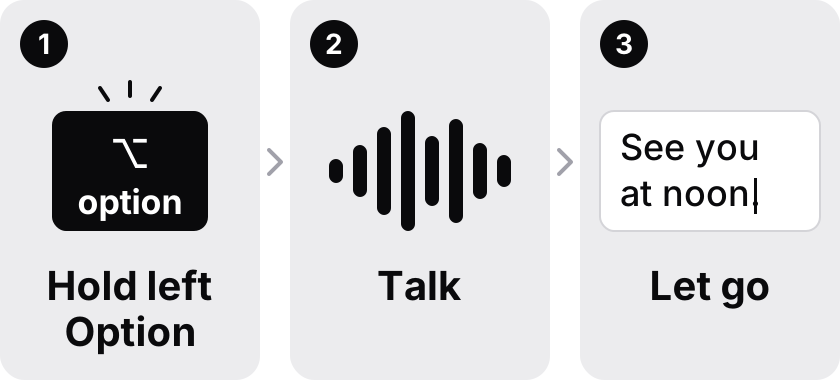
EaseMyPease works the same way in every app: hold a key, speak, release, and cleaned, punctuated text appears at your cursor. It does not need a plugin for each editor, because it types where your cursor is, the same way you would.
What changes per app is the tone of the clean-up. EaseMyPease looks at which app is in front and picks a style. Chat apps get a casual style, mail gets proper prose, and code apps get a more technical clean-up. The apps it currently treats as code apps are:
| Editors and IDEs | Terminals | Other |
|---|---|---|
| Xcode | Terminal | GitHub Desktop |
| Visual Studio Code | iTerm2 | |
| Cursor | Warp | |
| Windsurf | Hyper | |
| JetBrains IDEs | ||
| Sublime Text |
In those apps, the clean-up is told to expect technical vocabulary. Speech recognition often turns a technical term into ordinary words that sound the same, for example "postgres SQL" or "post cray SQL" for PostgreSQL, or "super base" for Supabase. The technical style looks for those patterns when the sentence is clearly about code and restores the intended term, and it keeps the usual casing for terms like API, Redis and PostgreSQL. In any other app, a sentence like "super base" is left alone, because there it might be what you meant.
This only applies when grammar clean-up is on. It is optional, and with it off you get the transcript with punctuation.
Names and jargon
Every team has words a speech model has never heard: the name of an internal service, a customer, a colleague called Ingrid or Tomasz, a library that came out last month. Well-known terms like Kubernetes and PostgreSQL are usually fine. Your own project names are the problem.
EaseMyPease learns names and jargon you use and keeps them in a dictionary stored on your Mac. Its words are sent along with your dictation so the clean-up can spell them right. Audio is processed in memory and discarded, with no audio or transcripts stored.
A practical routine
- Write the code by typing, as you do now.
- When you commit, hold the key in the terminal or your editor's commit box and say why you made the change.
- Open the pull request and dictate the description, including how a reviewer can test it.
- In your AI coding tool, dictate the full brief instead of a short request. Mention the files involved and describe what a good result looks like.
- Answer review comments and teammates in Slack by voice.
One tip for terminals: dictation types text, it does not press Return for you. Look at what was typed before you run anything.
Things to know before you try it
- EaseMyPease needs an internet connection, because transcription runs in the cloud. If you code on planes or on air-gapped machines, a local tool is a better fit. The Superwhisper alternative page covers one that runs offline.
- It needs macOS 15 or later. It runs on Intel and Apple Silicon Macs, and because nothing runs locally there is no model to download.
- It costs $10 a month or $100 a year, with a 3-day trial that does not ask for a card and a 14-day money-back guarantee. See pricing.
- It transcribes in 30+ languages and handles switching language mid-sentence, which helps if you talk to your team in one language and name your tools in another.
If you have not set up dictation on a Mac before, how to dictate on a Mac covers the basics, including the built-in option. For more apps to compare, see the Wispr Flow alternatives list. Or download EaseMyPease and try it on your next commit message.
Common questions
- Can I dictate in VS Code or Cursor on a Mac?
- Yes. A system-wide dictation app types wherever your cursor is, so it works in the editor, the commit box and AI chat panels without a plugin. EaseMyPease treats VS Code and Cursor as code apps and uses a more technical clean-up there.
- Can I write code by voice with a dictation app?
- Not well. Dictation apps are built for sentences. For writing code fully by voice, look at a voice control system such as Talon, which uses spoken commands and takes time to learn.
- Does dictation work in the Mac terminal?
- Yes, as long as the app types at the cursor. EaseMyPease works in Terminal, iTerm2, Warp and Hyper. It does not press Return, so you can check the text before running it.
- Will it spell technical terms correctly?
- Common ones usually, and in code apps EaseMyPease's clean-up watches for terms that speech recognition tends to mishear, such as PostgreSQL. For your own project names, it learns them over time in a private dictionary on your Mac. No dictation app gets every term right, so read before you send.
- Is my audio stored?
- No. EaseMyPease processes audio in memory and discards it. No audio or transcripts are stored, and the learned dictionary stays on your Mac.